
What an ATS Does With Your CV, and How to Get Past It
Score your LinkedIn headline free, in 10 seconds
Your CV has two readers. The first one has no eyes.
It is an applicant tracking system, or ATS: the software employers use to receive, store, sort, and rank job applications. Workday, Greenhouse, and Lever are common worldwide; in Australia you will also meet PageUp and JobAdder. Every time you click “Apply” on an employer’s careers page, an ATS usually receives your application first.
What happens after you click Apply
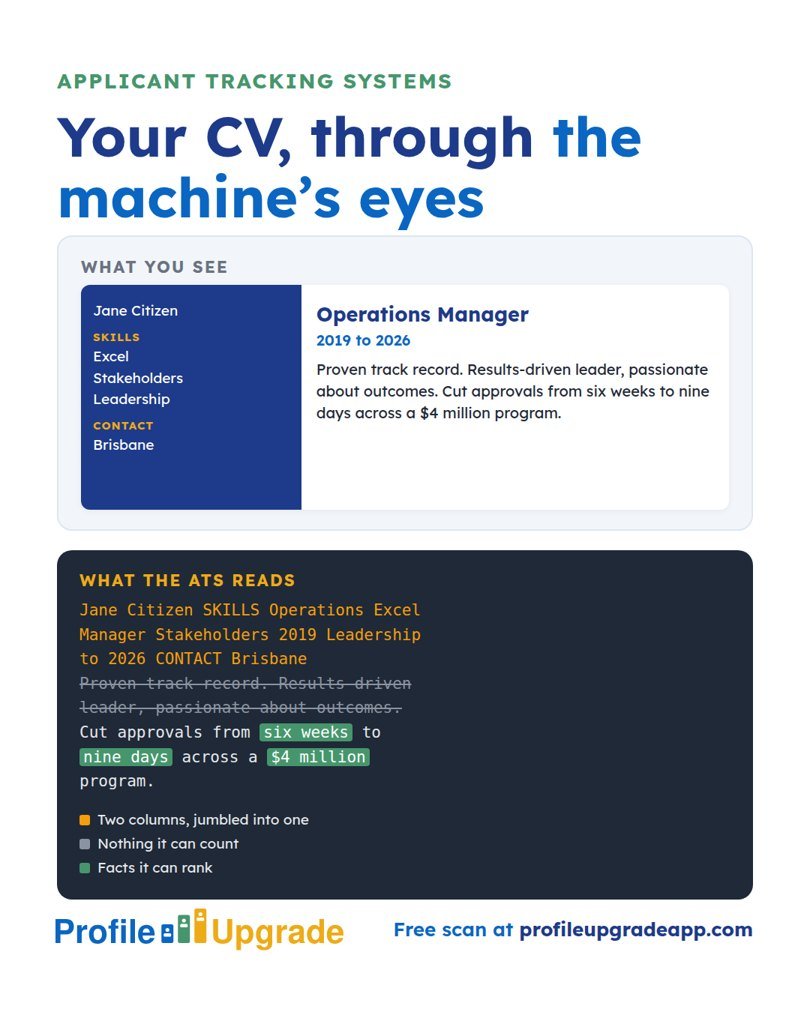
- The system reads your file and turns it into plain text. Design, colour, and layout disappear at this step.
- It sorts that text into fields: your name, your roles, your dates, your skills.
- It checks your answers to any screening questions, such as work rights or a required licence. A wrong answer can remove you before anyone reads further.
- It compares your words with the job ad and ranks you against the other applicants. Many recruiters open the highest-ranked applications first.
- It keeps your application on file, where recruiters search it by keyword for future roles.
What an ATS misreads
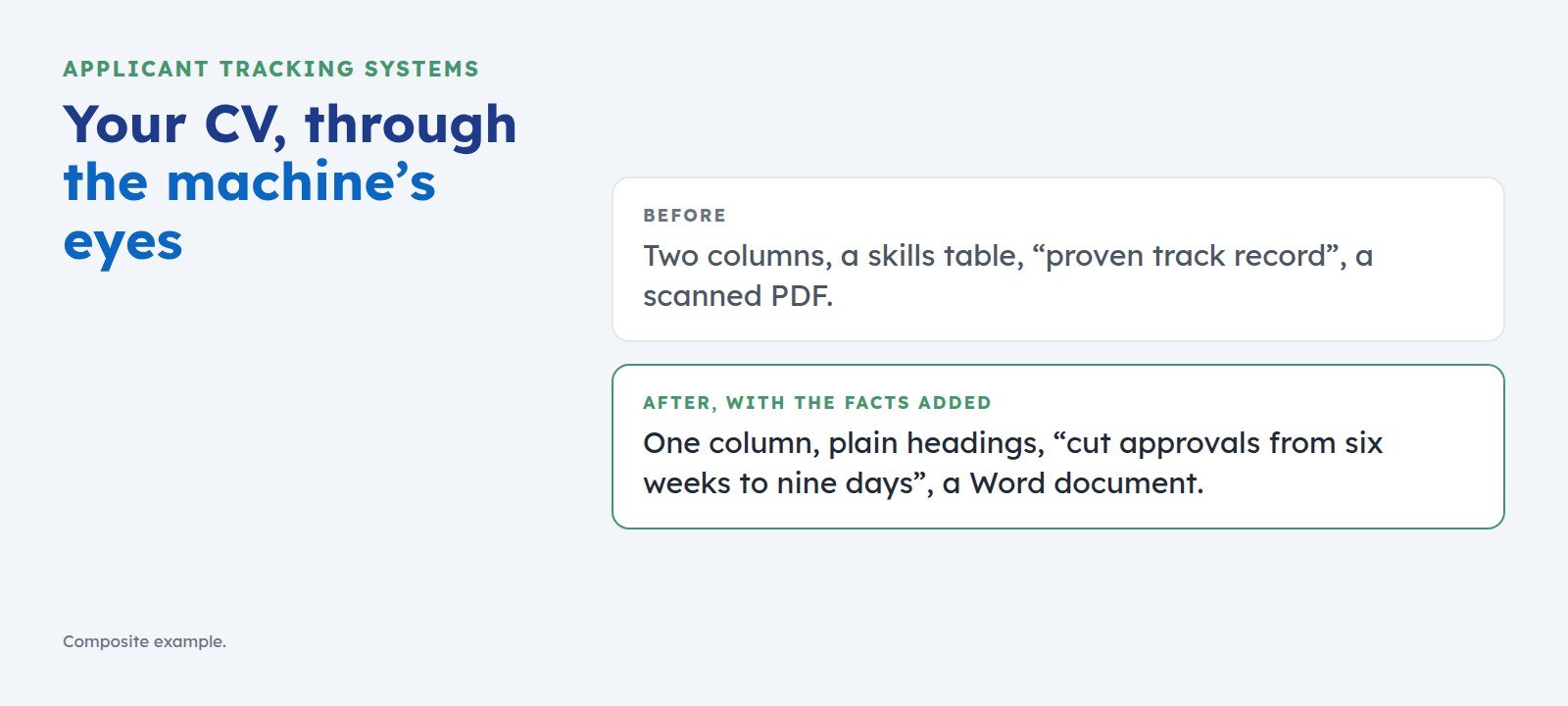
- Two-column layouts. The system may read straight across both columns, so your skills list and your job titles run together into nonsense.
- Tables, text boxes, and graphics. Some systems skip them, and the words inside them vanish from your application.
- Headers and footers. Some systems ignore them, so contact details placed there can go missing.
- Unusual section names. “Where I’ve made a difference” may not register as work experience. “Experience” always does.
A myth worth dropping
You may have read that ATS software rejects 75 per cent of CVs before a human sees them. The figure travels widely, yet no published study stands behind it. Most systems rank and filter at the recruiter’s direction. The practical point holds all the same: if the software ranks you low, a busy recruiter may never reach your application.
Five fixes that get you ranked
- Use the job ad’s own words for skills you truly have. If the ad says “stakeholder engagement”, write that phrase, and leave out a clever synonym.
- Keep the layout to one column, with plain section names: Summary, Experience, Education, Skills.
- Save as Word or as a text-based PDF, whichever format the employer requests. A scanned PDF is a picture, and a picture holds no words to read.
- Give the system facts to rank: numbers, named tools, named results. “Proven track record” matches nothing. “Cut approvals from six weeks to nine days” gives both readers something to count.
- Answer the screening questions exactly and truthfully. They filter harder than anything in your CV.
Skip the white-text trick
Some job seekers paste the whole job ad into their CV in white text, invisible on the page. Many systems show the recruiter the plain text, invisible words included. A CV caught gaming the system loses the reader’s trust, and trust decides shortlists.
See your CV the way the first reader sees it
Profile Upgrade’s free scan reads your CV or LinkedIn profile for the evidence a screen looks for, scores it out of 100, marks the lines that undersell you, quoted in your own words, and rewrites three of them on the spot. It needs no account and stores nothing you paste.
Step 1 of 3 · 10 seconds
How does your LinkedIn headline score?
Paste the line under your name. Your score appears in seconds, with a stronger headline written for the role you pick below.
No account, no email. Profile Upgrade saves nothing you paste.
See how a screen reads your profile. The free scan scores your LinkedIn profile or CV out of 100, marks the lines that undersell you, quoted in your own words, and rewrites three of them. No account; nothing you paste is saved.
More guides
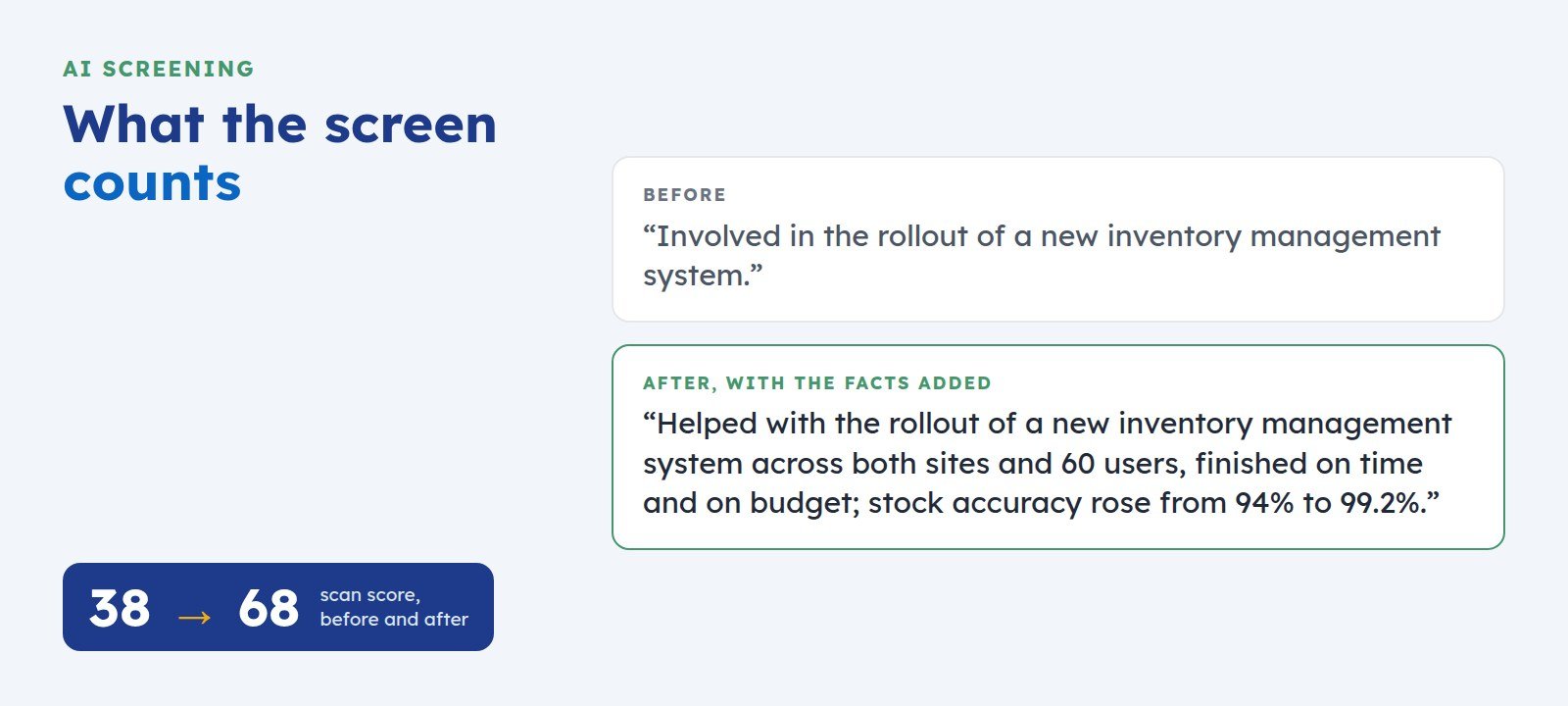 How to Get Your LinkedIn Profile Past AI ScreeningScreening software reads your LinkedIn profile before a recruiter does. Here is what it looks for, where profiles lose points, and five fixes you can make today.
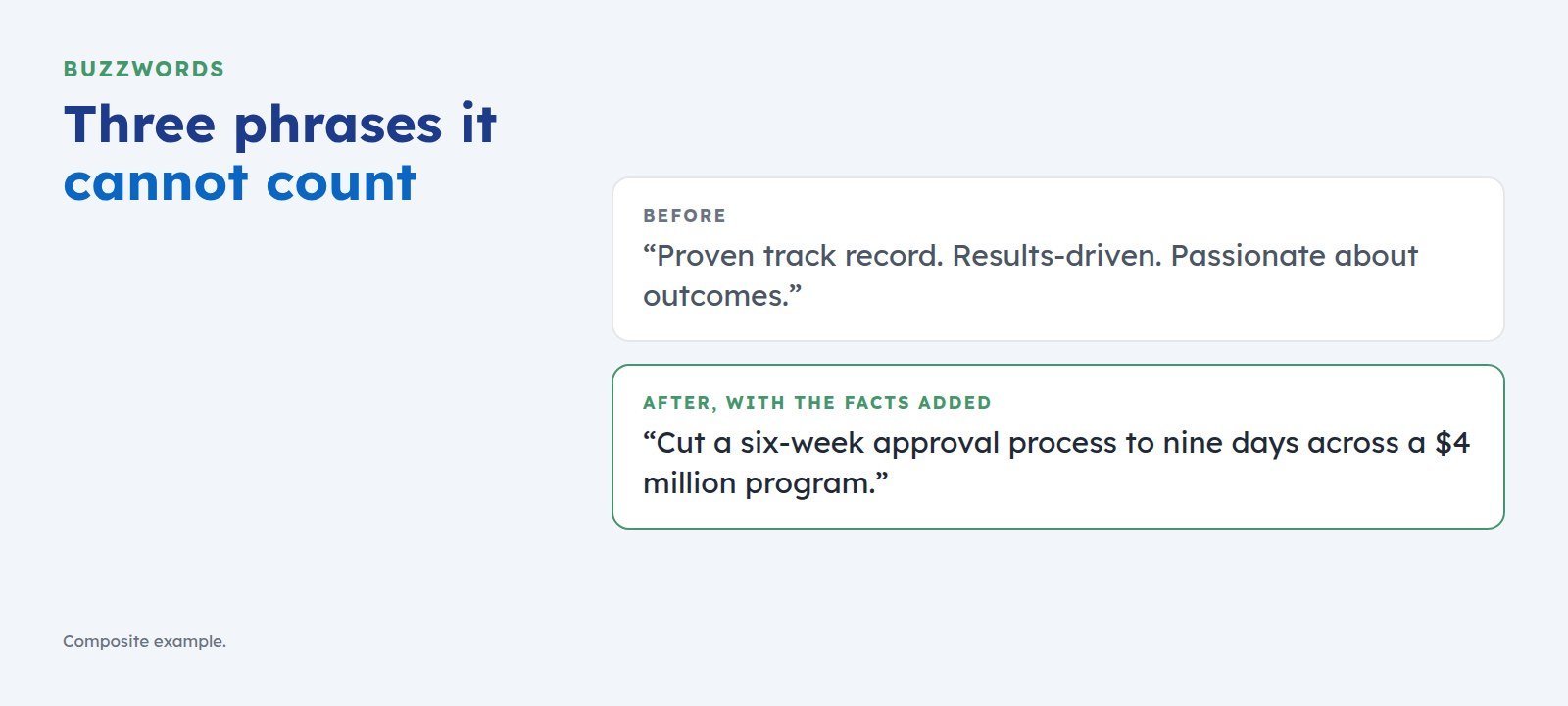 The Buzzwords That Cost You the Shortlist, and What to Write Instead“Proven track record” and “results-driven” give screening software nothing to count. Here is the swap test that turns each buzzword into a line a recruiter can shortlist.
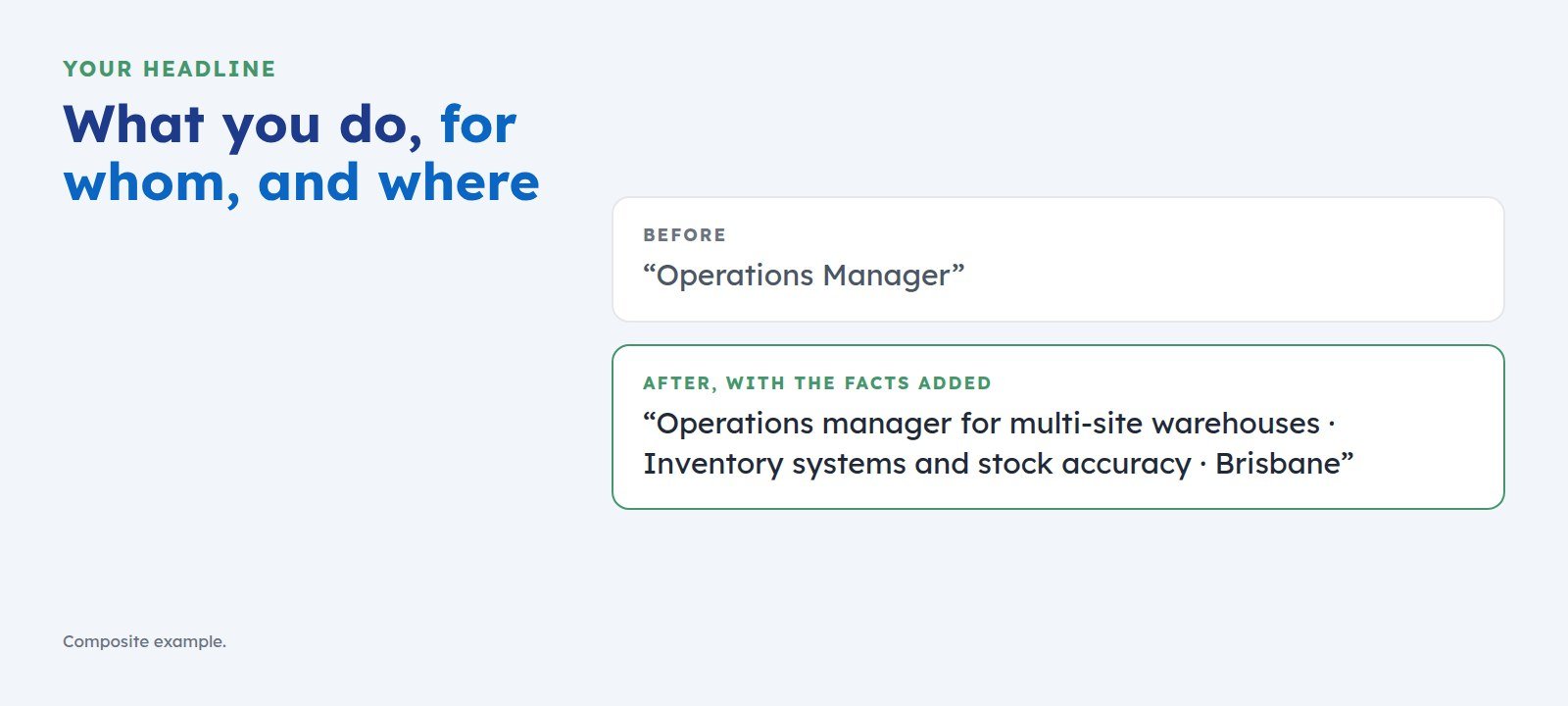 How to Write a LinkedIn Headline That Gets You ShortlistedYour headline is the first line a screen reads. Use one simple pattern, what you do, for whom, and where, with examples for managers, consultants, graduates, and career changers.